mTIME app - User guide for mTIME app
Introduction
Welcome as a user of the mTIME app. We hope that this small guide will help you get started with using the app as a registration tool in mTIME.
Enjoy.
Getting Started with Using the App
The app can be downloaded from Google Play and the App Store. It can be found by searching for ‘mTIME’.
When you log in, you should use the same login information that you use to log in to your work computer.
Open the app on your phone.

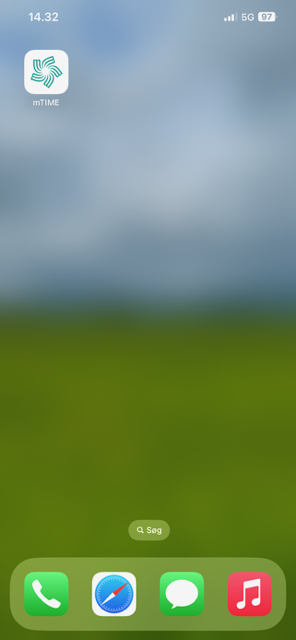
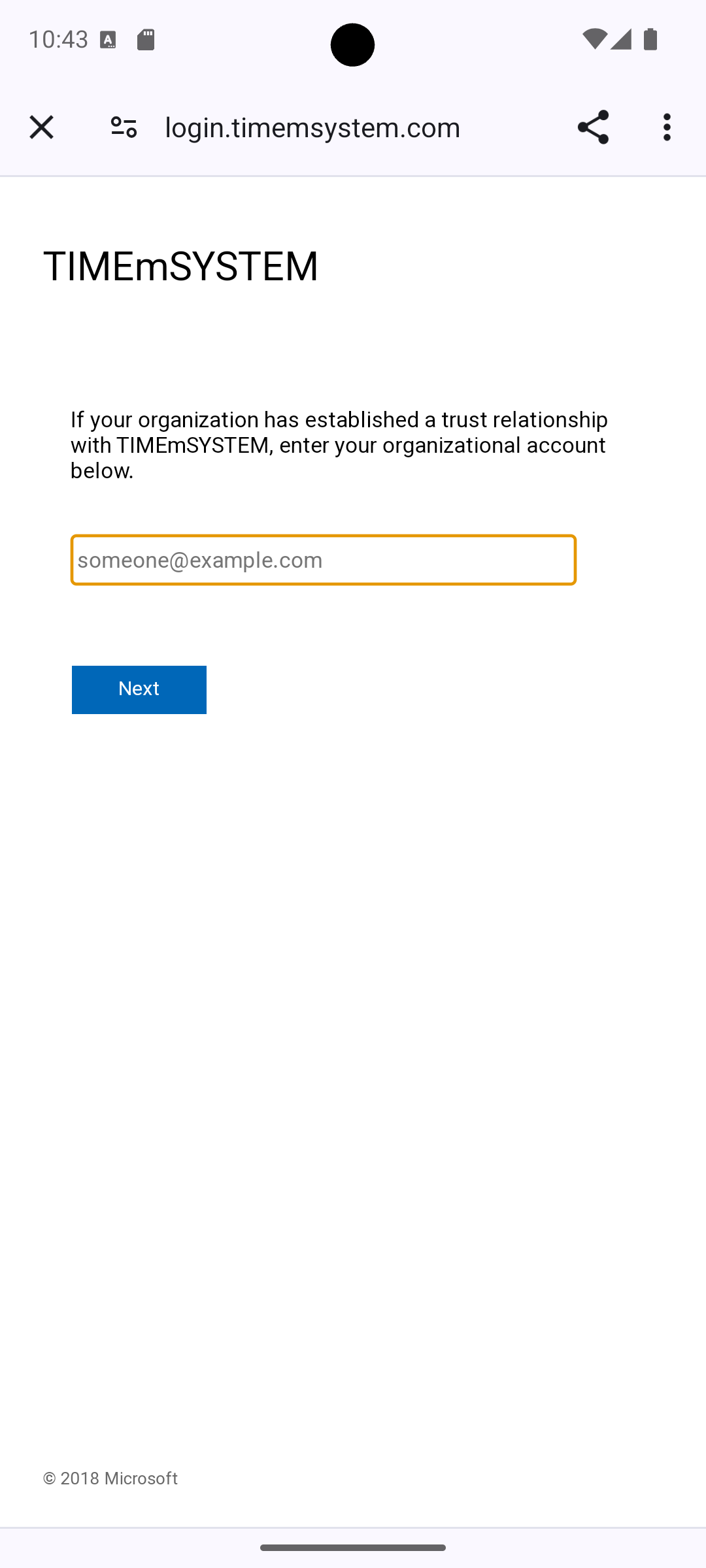
Pres the “Sign in with Microsoft“ button.


Enter the email address (your work email address) associated with your mTIME account and press Next. After this, you are ready to use the app. If the time registration screen does not appear initially, it can be found in the menu under Daily Registration.

Work Time Registration
Press the Plus button to register arrival/departure time.
Activities can be added if desired, as well as multiple arrival/departure times.
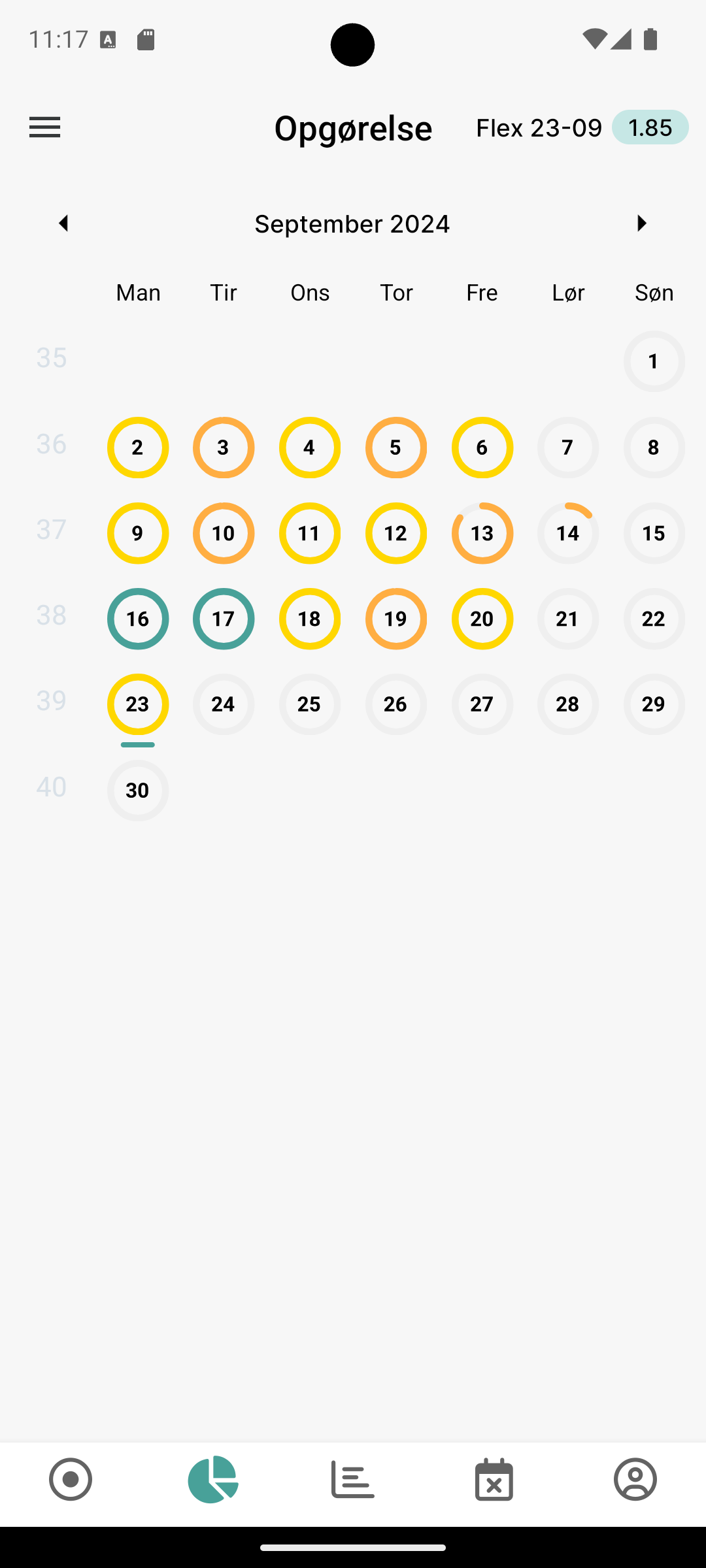
NB - Meaning of the Colors
Orange - Regular registrations within the standard working hours (reg < working hours)
Yellow - Registrations that exceed the standard working hours (reg > working hours).
Teal blue - Registrations that are equal to the standard working hours (reg = working hours).

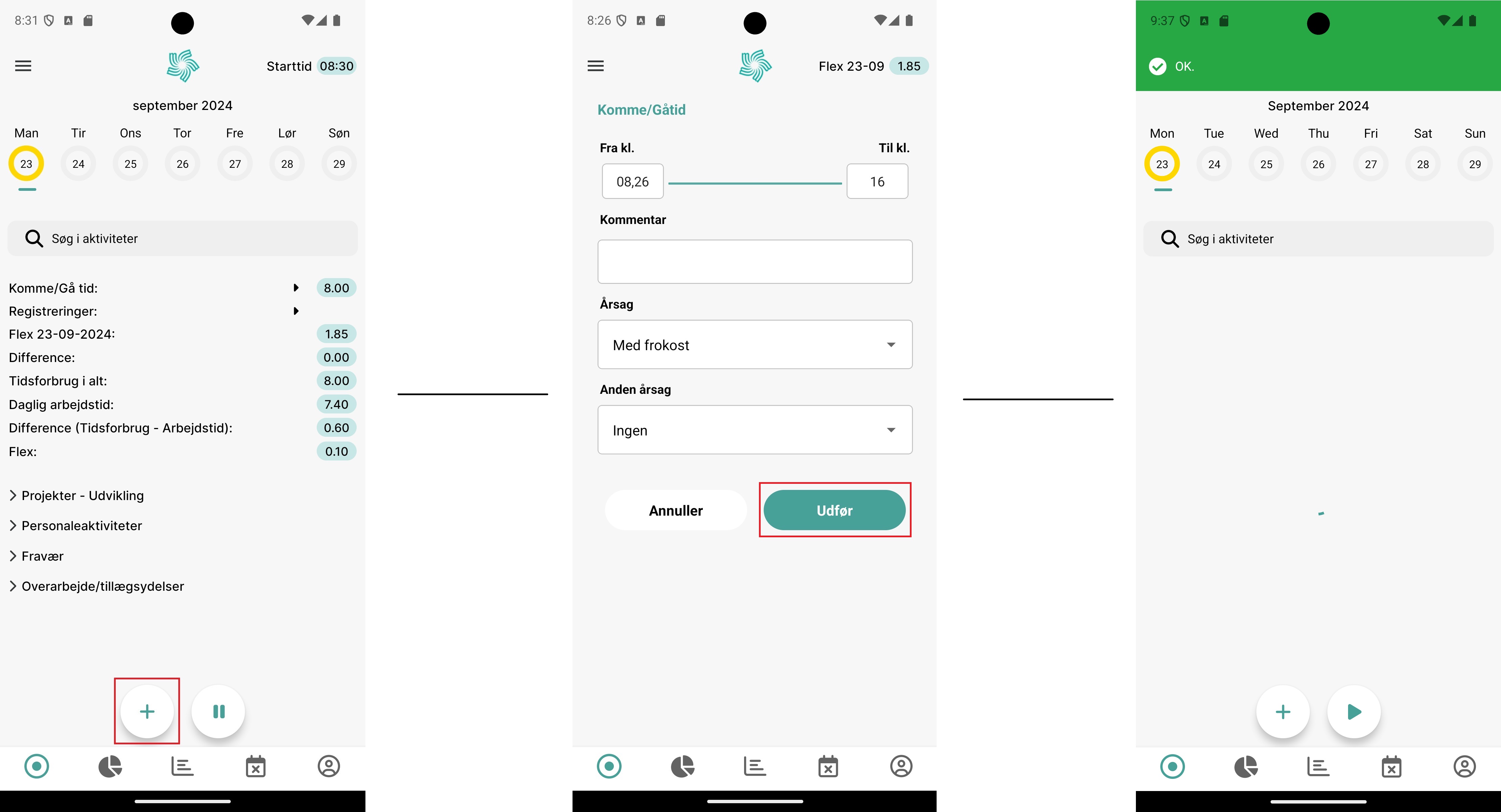
Enter the arrival/departure time in the From and To fields. If you use the Reason option when registering, add it, for example, for mandated overtime. There is also an option to add a comment to the registration. Complete and save by pressing Done at the bottom right of the screen.
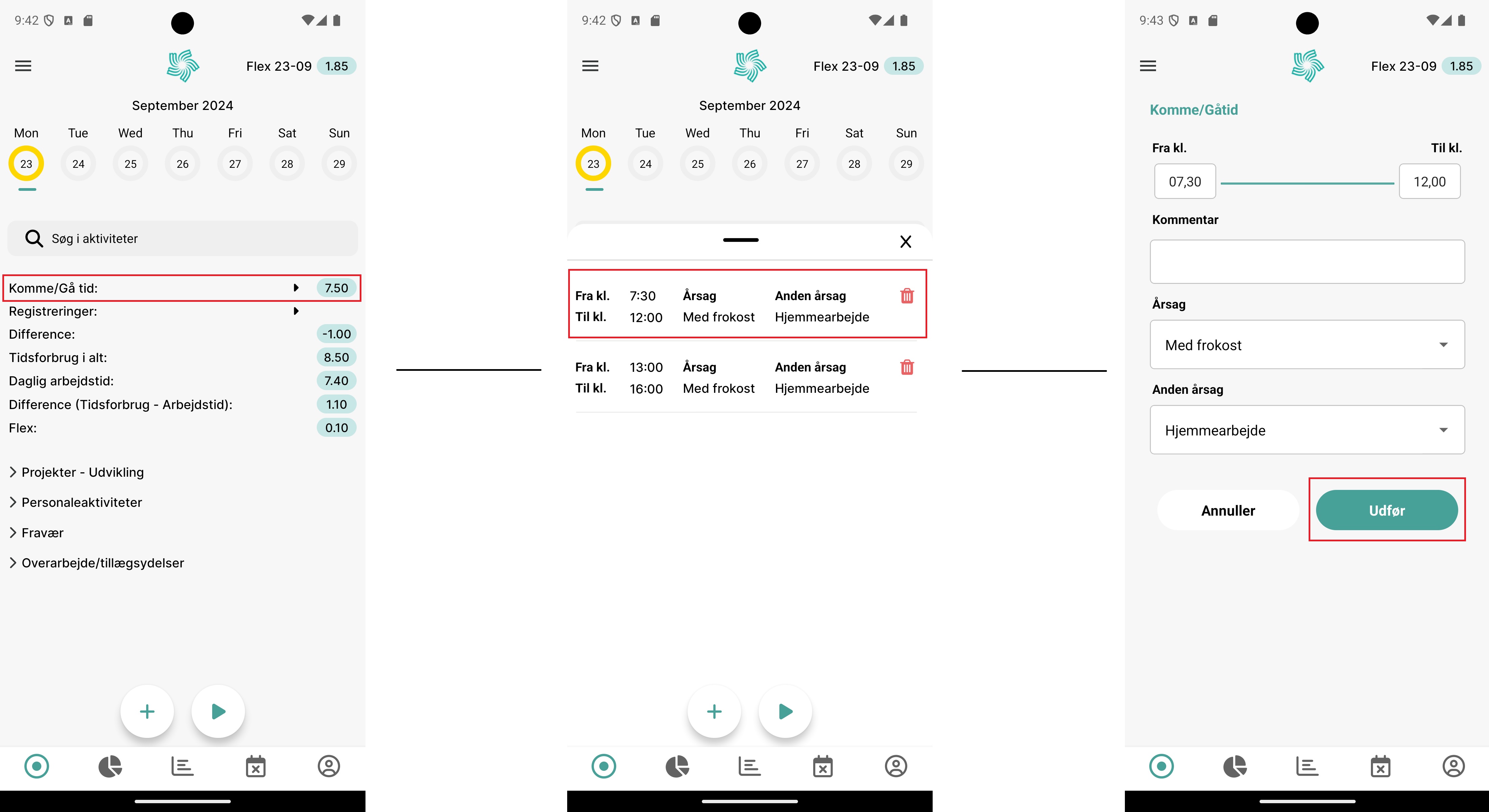
The work time is now registered. You have the option to enter additional arrival/departure times for the day by pressing the Plus button again. It is also possible to edit or delete the already entered times by pressing the arrow next to the arrival/departure time. Then select the time you want to edit and follow the same flow as when creating a new arrival/departure time.

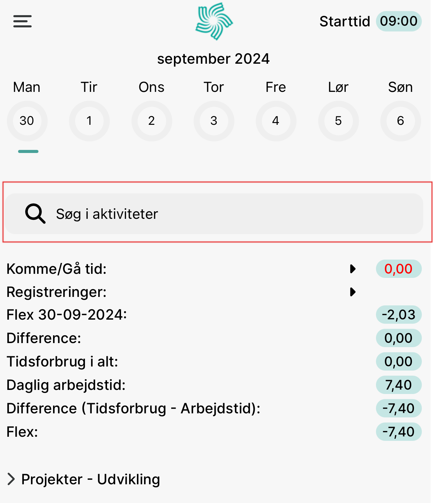
Missing Activity
It is possible to search for an activity if it is missing in the app. The only ones that need to be selected via the website are dynamic aliases.

Absence Registration
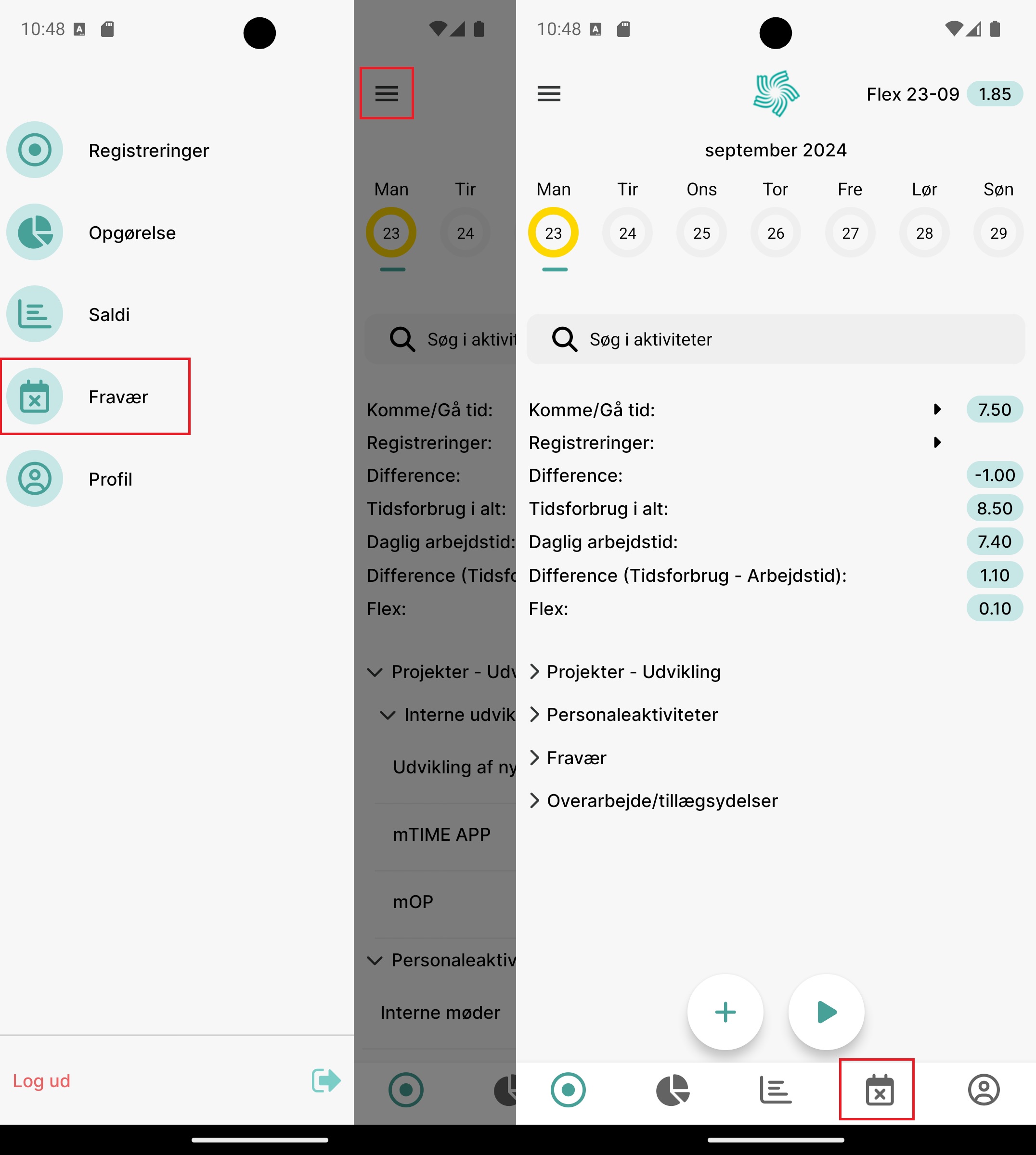
To register absence, select Absence from the menu.


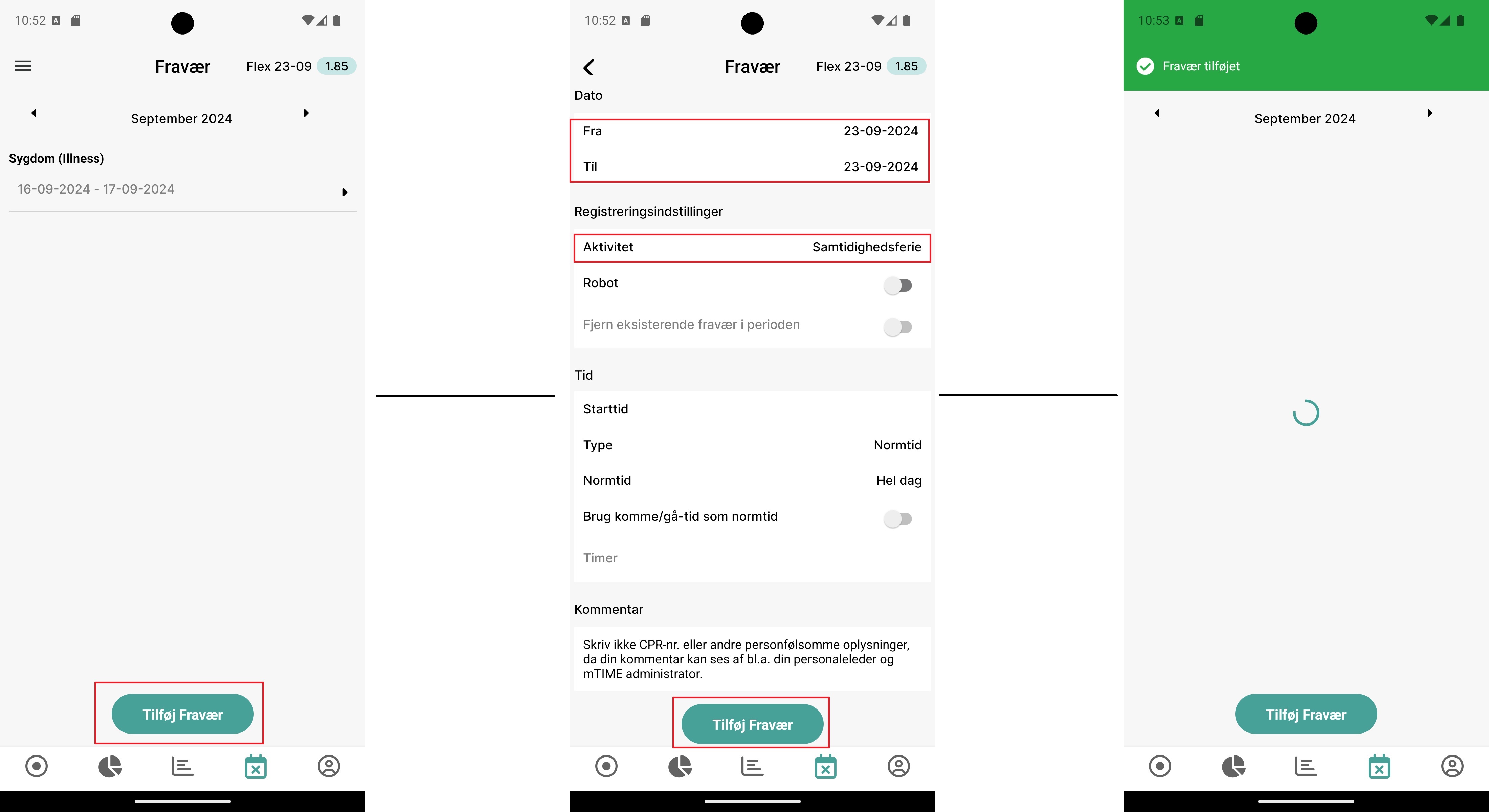
Then set the relevant fields and finish by pressing the Add Absence button at the bottom. The absence is now registered.
Balances
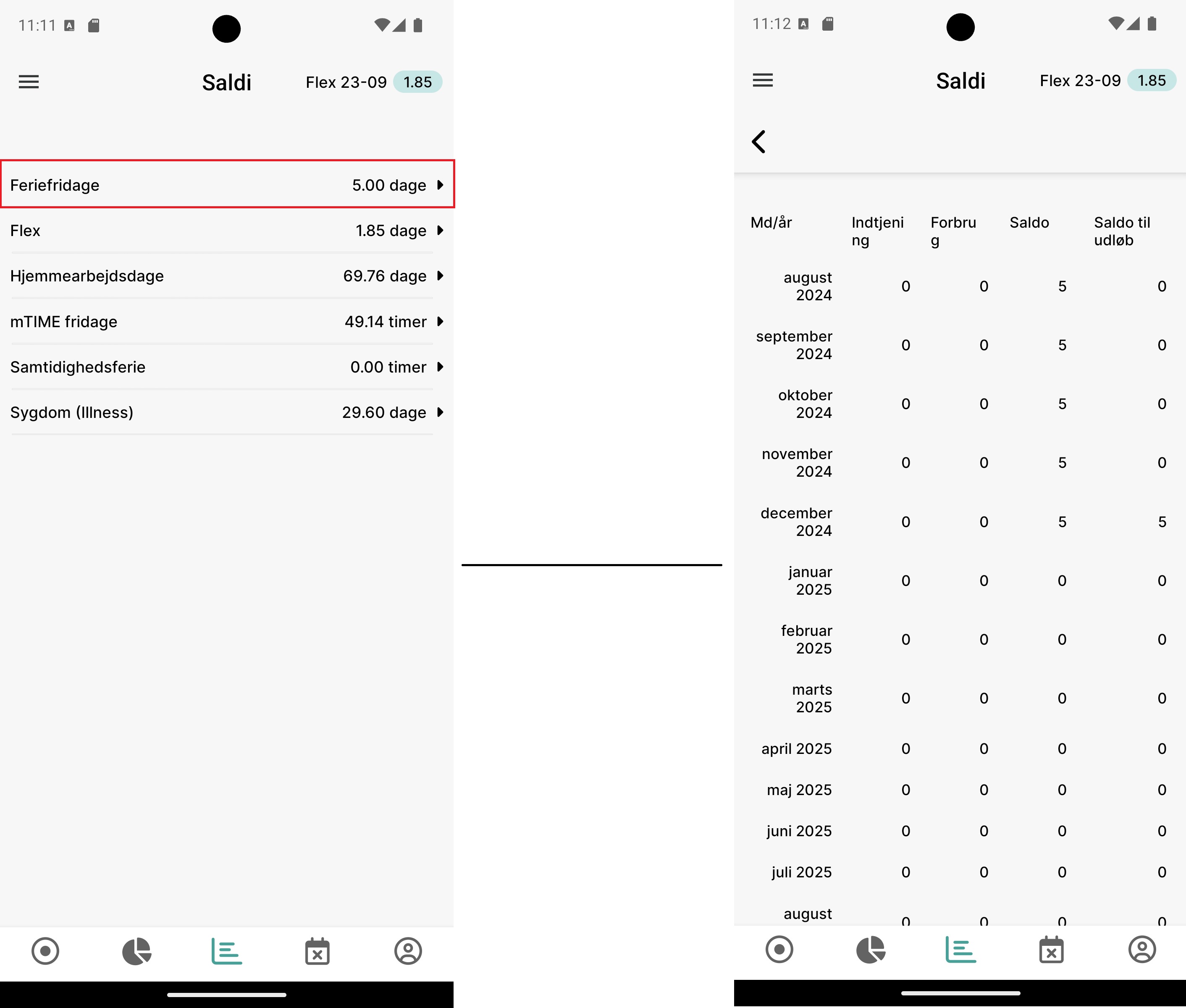
Under the menu item Balances, you can get information about the balance of accrued vacation/leave.
In the menu, select Balances.

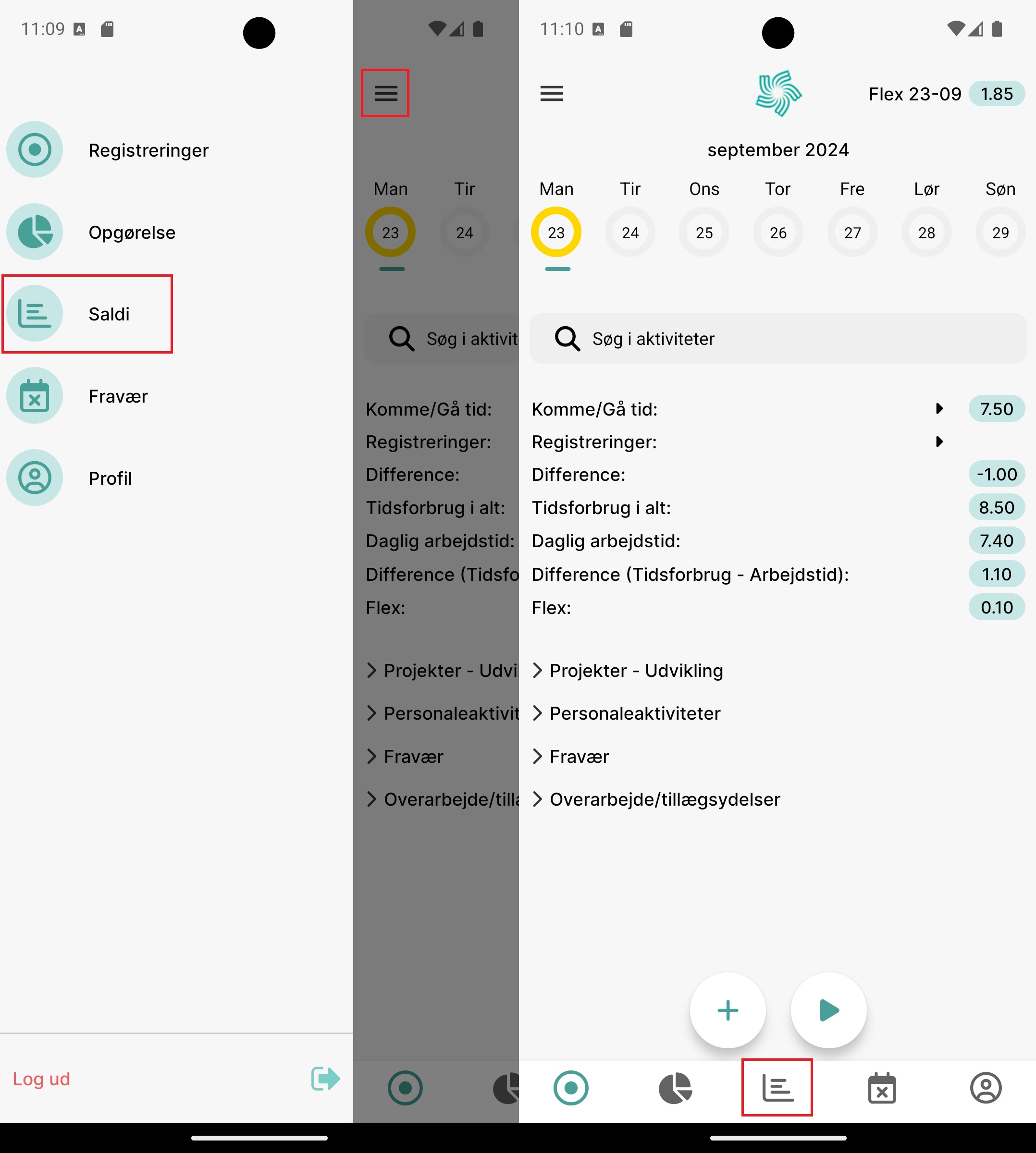
Afterwards, you can click on the listed values to see an overview.

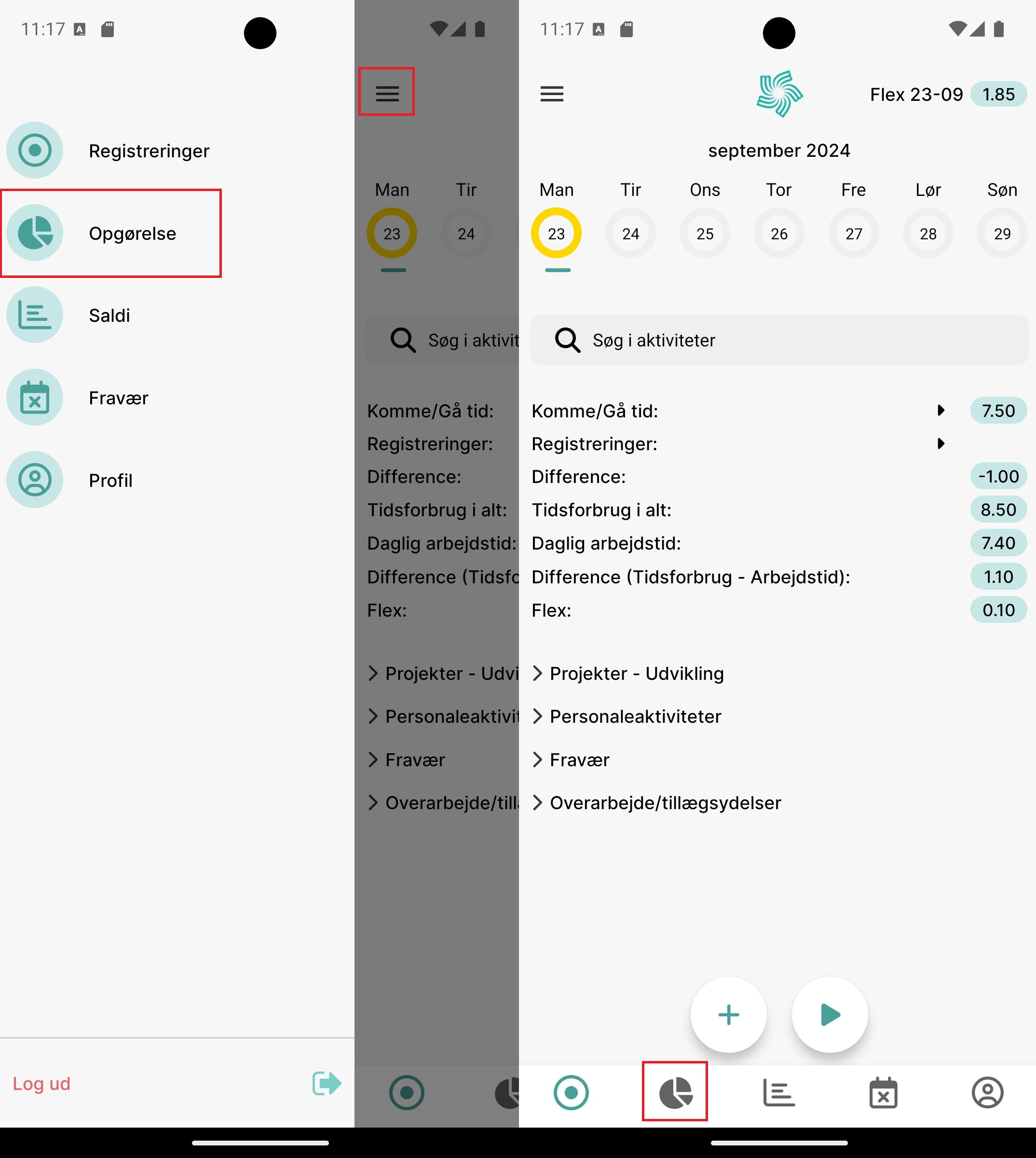
Summary
Under the menu item Summary, the registered hours are displayed as a visual overview of the total registrations for the month.


Profile Settings
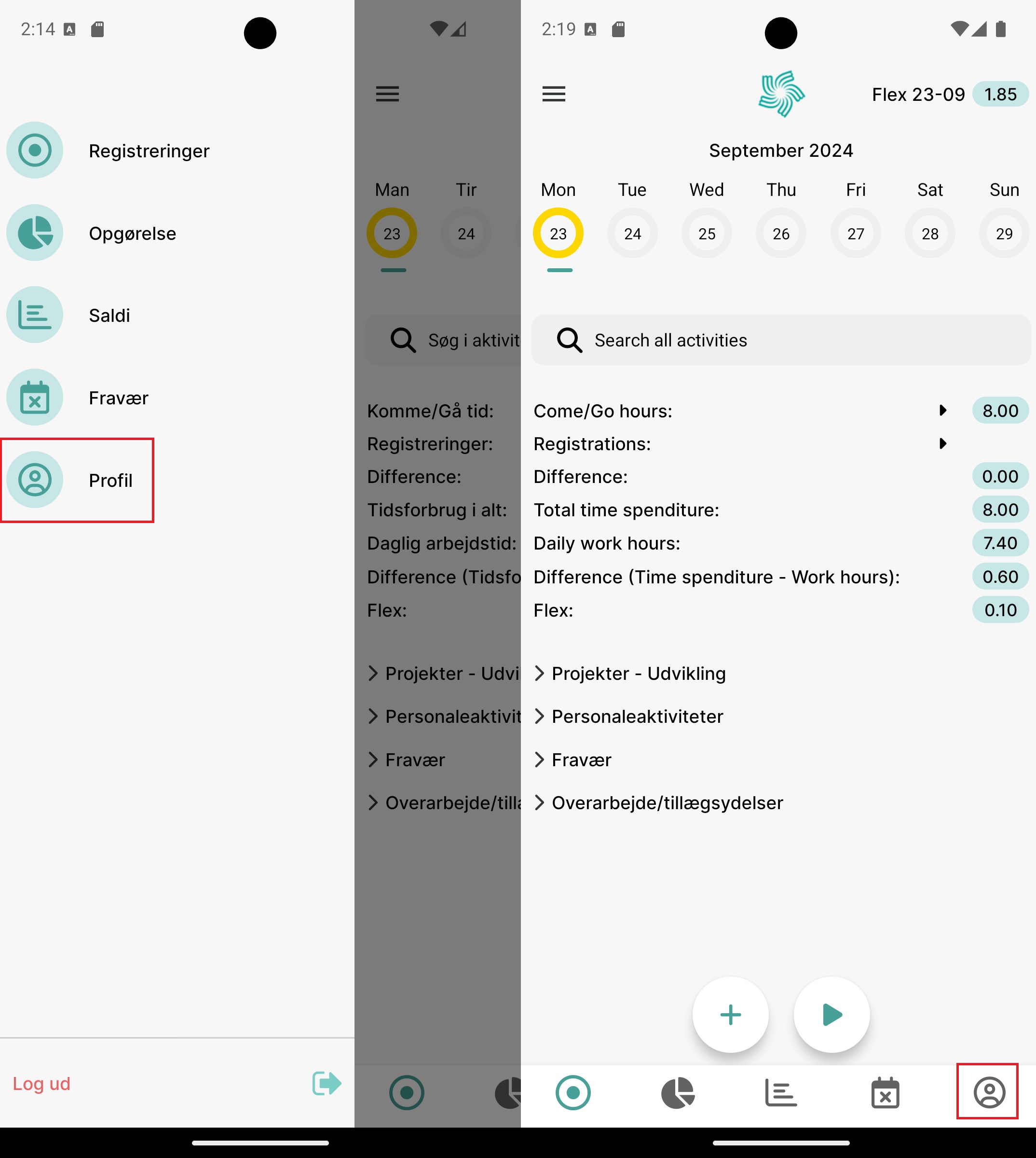
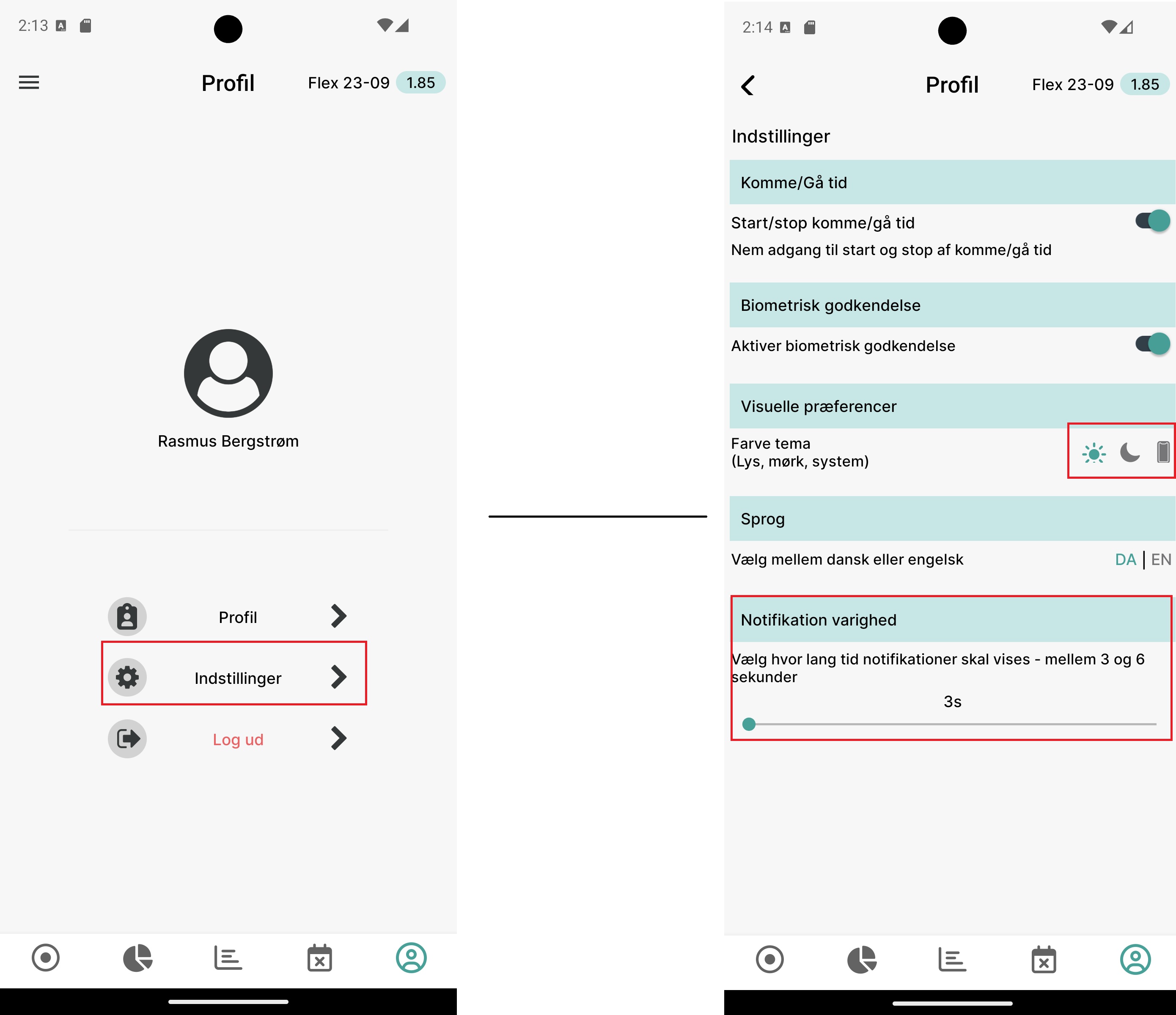
Under the menu item Profile, you can navigate to settings where the user has the option to change the color theme (you can choose between dark, light, or device) and how long notifications should be displayed on the screen.


Source: Confluence | Page ID: 553091074